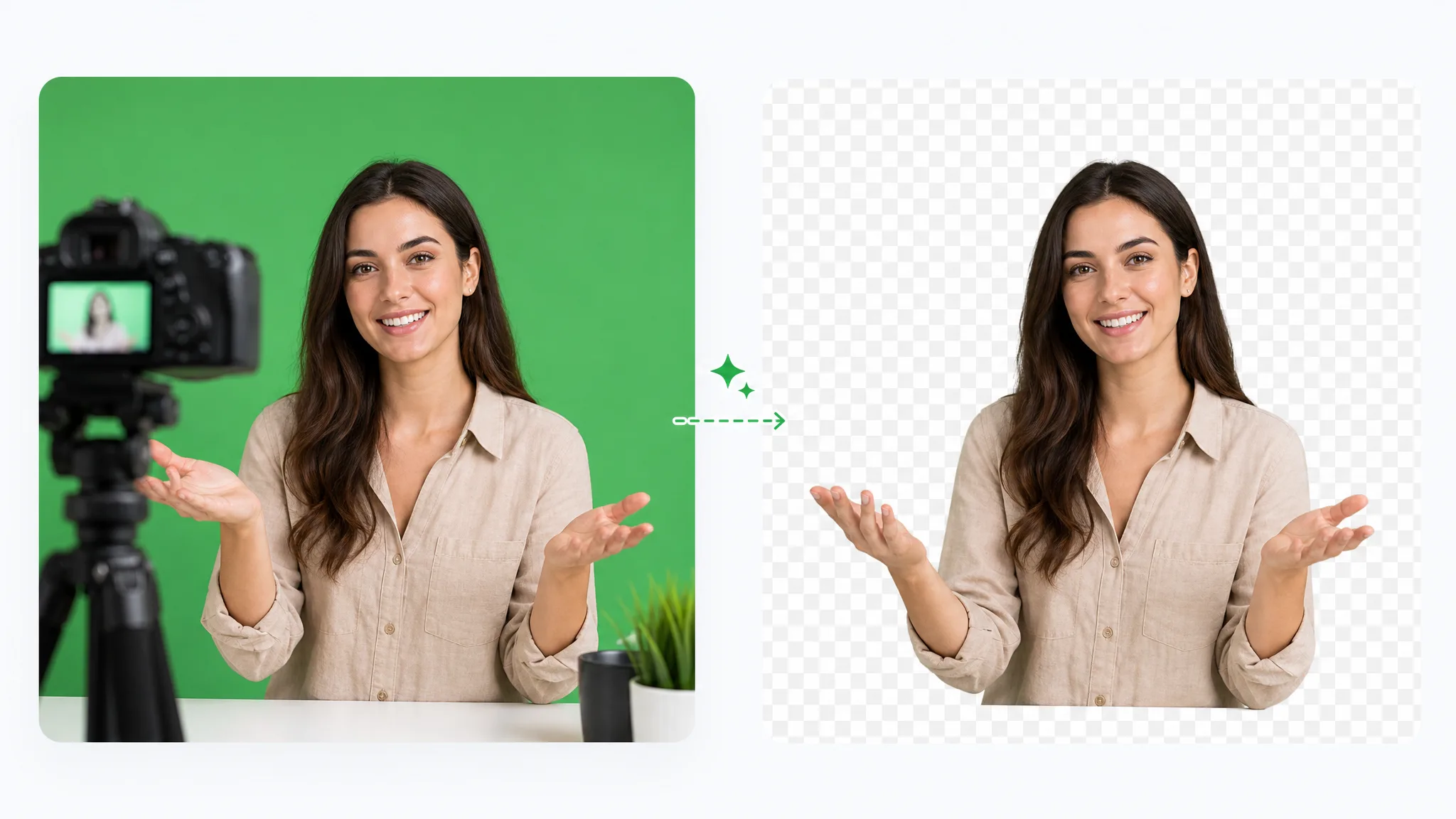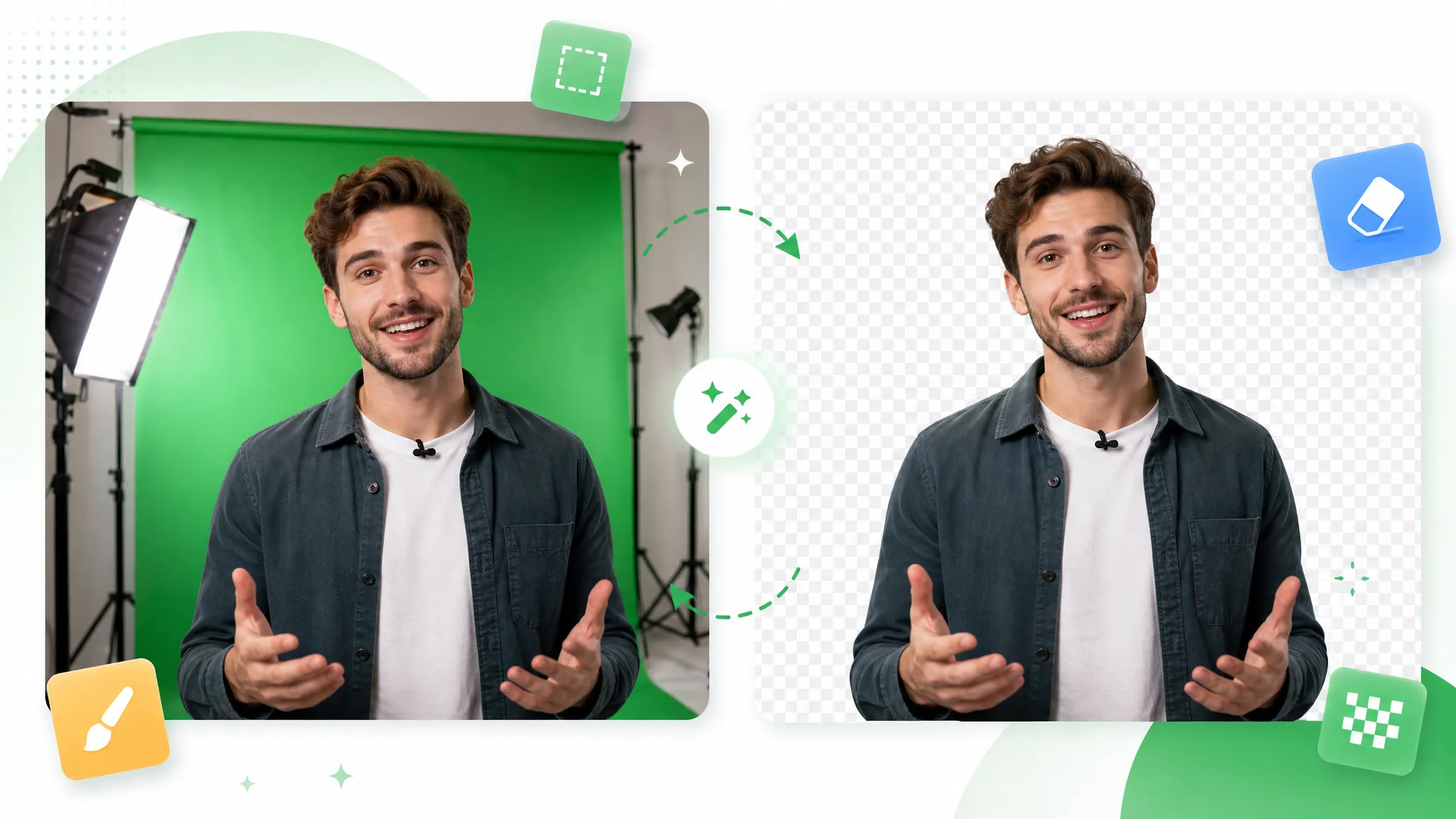
Remove Video Background with AI

Upload a clip and RemoveVideoBG's AI separates your presenter, product or character from the background, with no green screen needed. Download a transparent WebM, or an MP4 or MOV on a solid-color background, ready for your editor, website or slides.

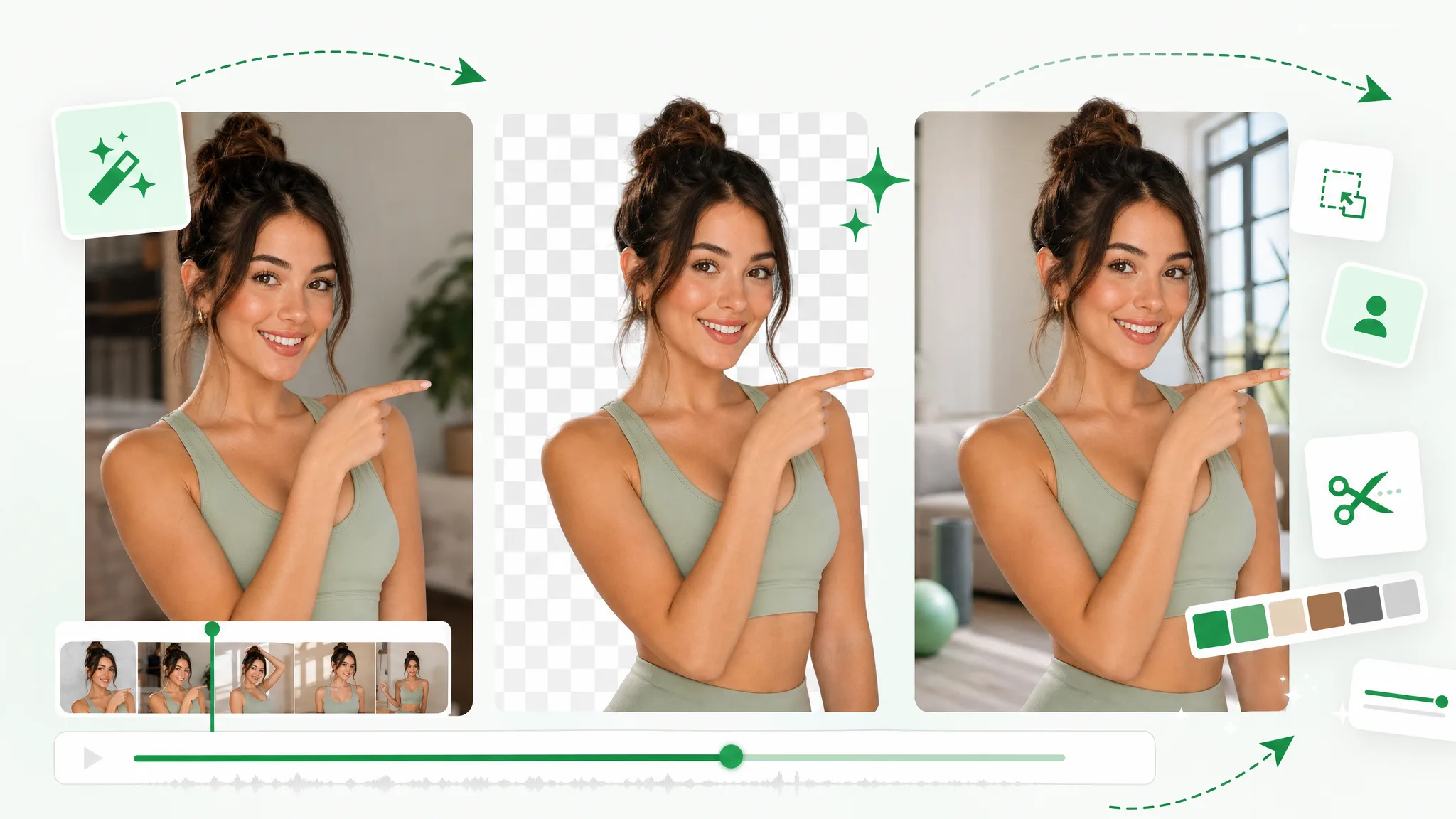
A woman pointing sideways in three panels: her original room, a transparent checkerboard, and a bright living room.
or drop a file hereMP4, MOV, WebM · Max 180s · up to 4K · 100MB
No video? Try one of these:
Free to try
  • No watermark
  • Transparent WebM export
  • Up to 4Kresolution
  • Up to 3 minutes

See it in action

Before and after: remove video background from sample clips

These sample clips show what happens when you remove video background: the subject stays and only the background goes. They cover presenters, action shots, animated characters and product videos, so drag the slider across each one to compare the original footage with the result.

BeforeAfter

Creators & vloggers

A presenter prepared as a separate subject for another scene.

BeforeAfter

Sports & action

An action example showing the subject cut out on a transparent background.

BeforeAfter

3D character animation

An animated character shown separately from its original setting.

BeforeAfter

Game & VFX characters

An armored fantasy game character with a cape, cut out from its night-time landscape.

BeforeAfter

Social UGC & hauls

A creator and product example with the background removed.

BeforeAfter

AI & CGI footage

A sci-fi spaceship flying through storm clouds, cut out from the sky.

Features

Remove video background once and reuse the layer across projects

An AI video background remover turns one recording into four things: a transparent layer, a cutout from ordinary footage, a subject for your brand design and a repeatable video background removal workflow.

A transparent layer for your next composition

Make the video background transparent for a presenter, product or animated character: remove video background once, and the cutout is yours to reuse. Download a transparent WebM, ready to layer over any background in your editor or on your website. Place it over slides, a page section or campaign artwork, with the subject staying on its own layer.

Create a Transparent Clip
Split view of a woman holding a green flask in a shop, and the same shot with only her and the flask on a checkerboard.

Ordinary footage, no green screen needed

Upload an ordinary recording of a talking head, a demonstration or a walk-through, and the AI will remove video background without masks drawn frame by frame. Footage shot on a green screen works too. Preview the result, then keep the subject for a lesson, a product explanation or a new creative composition.

Use Your Own Footage
A woman jogging along a forest path, then cut out on a checkerboard, then running up a mountain trail at sunset.

Your brand behind the subject

Brand videos often need the same presenter in front of different colors or artwork. Once you remove video background, place the transparent WebM over your campaign artwork, a brand color or an image in your editor. The cutout stays separate from what sits behind it, so you can swap the backdrop for each post while the footage stays the same.

Cut Out Your Brand Video
A woman talking to camera in a bedroom, with an arrow to the same clip against a green wall, a plant and a shelf.

Every scene as its own clip

A short facecam, a set of product recordings and a lesson series each work best as separate clips. Try this AI video background remover on one short clip first to see how the edges look, then remove video background from each scene in turn and join the finished clips in your editor.

Start With One Clip
A woman at a wooden desk in front of a dark green wall and shelves, beside the same shot with a white wall and wood shelves.

Why choose us

Why use this AI video background remover

RemoveVideoBG is an AI video background remover: it cuts a person, product or character out of a recording and exports a transparent WebM or solid-color video with no watermark. Six reasons to use it in your browser.

Automatic subject separation

Instead of masking every frame by hand, remove video background automatically: the AI separates the person, product or character from the original setting, and you review the cutout in the preview before you download it.

Transparent WebM export

A transparent WebM carries a true alpha channel, so after you remove video background the subject blends into whatever sits behind it: a slide, a web page or campaign artwork. Your editor has no color to key away, and the same file keeps working when the scene behind it changes.

Watermark-free exports

Your exports carry no watermark, so the cutout is ready for your slides, web page or edit exactly as you download it. That applies to the transparent WebM and to the solid-color MP4 or MOV exports alike.

Clips up to 3 minutes

A whole introduction, product demonstration or lesson segment can go through as one clip: Basic and Pro give you 3 minutes, and Ultra gives you 1 minute with extra backgrounds, formats and audio. Treat each scene or take as its own clip, and remove video background on each one in turn.

Backgrounds that fit the project

The background suits the project: keep a transparent layer when other visuals will sit behind the subject, or choose a solid-color backdrop that is part of the file when the clip should arrive finished. Remove video background for one project and the same subject layer can move between slides, landing pages and social posts.

Nothing to install

Everything happens in a browser tab, from the upload to the download, and you carry on in the editor you already use. Because the cloud does the processing, your computer has no software to set up and no heavy work to do.

How it works

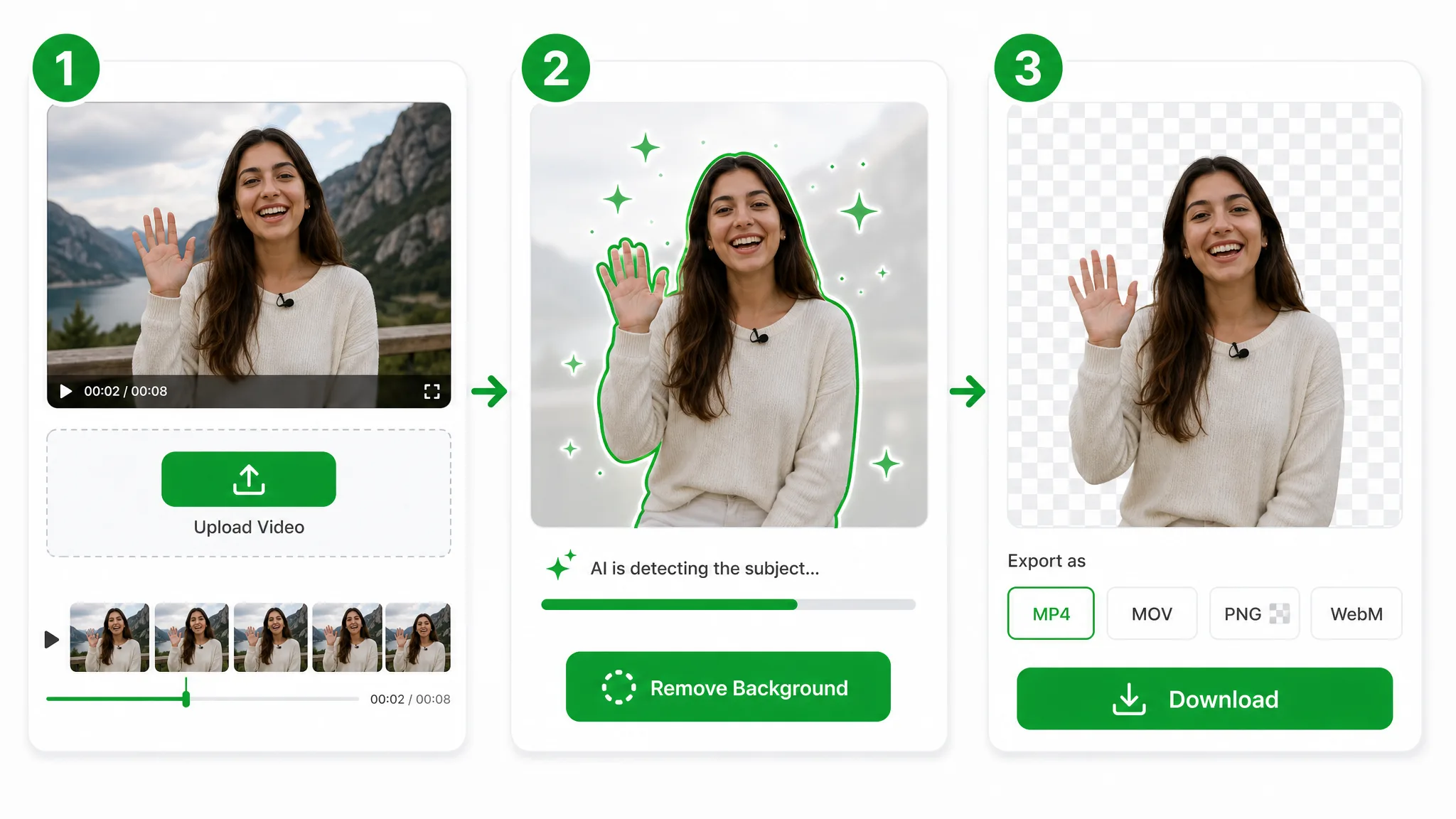
How to remove background from video in three steps

Follow these three steps to remove video background online, from upload to download: you begin with a recording you already have and finish with a clip you can use in a new composition.

Three app panels: Upload Video, Remove Background as AI outlines a waving woman, then MP4, MOV, WebM and Download.
  1. 1

    Upload your source clip

    Choose an MP4, MOV or WebM video of up to 100 MB from your device, or open one of the sample clips. Pick the section with the presenter, product or character you want to keep, and keep that subject visible in the frame so the AI can remove video background around it.

  2. 2

    Choose the setting and start processing

    Choose a tier and a background. Basic and Pro export a transparent WebM for clips up to 3 minutes; Ultra adds a solid-color or green background as an MP4 or MOV for clips up to 1 minute. The tool shows the credit quote for your clip before you start, and processing then runs in the cloud while you wait.

  3. 3

    Check the edges and download your result

    Play the processed video and check the edges, especially around hair, hands and fast movement. Then download the export that fits your next step: a transparent WebM to use as a layer, or an MP4 or MOV with a built-in backdrop from the Ultra tier. Upload the next clip whenever you want to remove video background from another one.

Export formats

Transparent video or a solid color: choose your output

A transparent WebM keeps only your subject, ready to layer over any background, while a solid-color MP4 or MOV puts the subject on a backdrop you choose. Pick the format that fits what you do next after you remove video background.

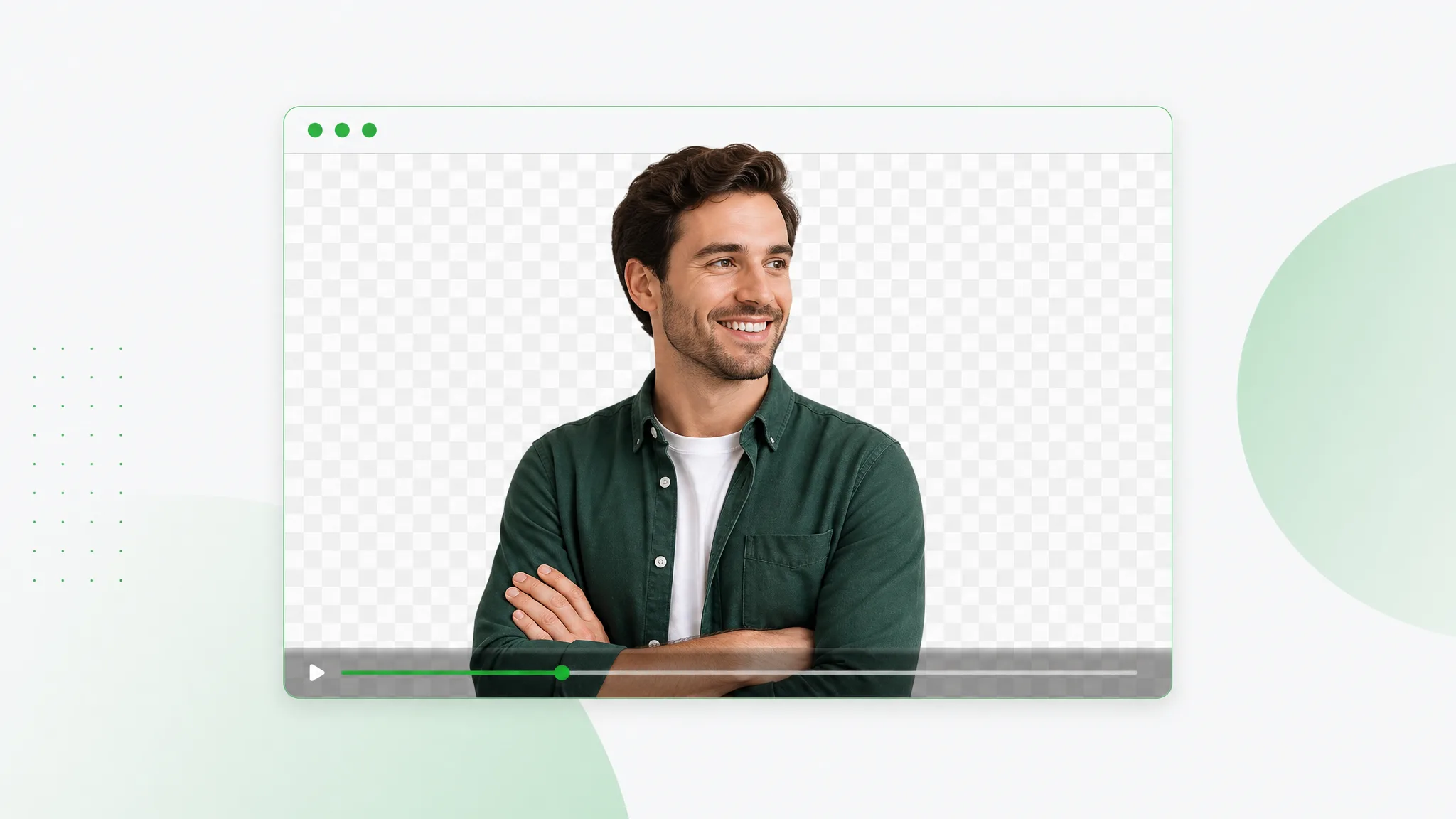
A smiling man with crossed arms on a transparent checkerboard in a browser window, shown as a WebM preview.Transparent

WebM

Video with a transparent background (alpha channel), for websites, overlays and editors.

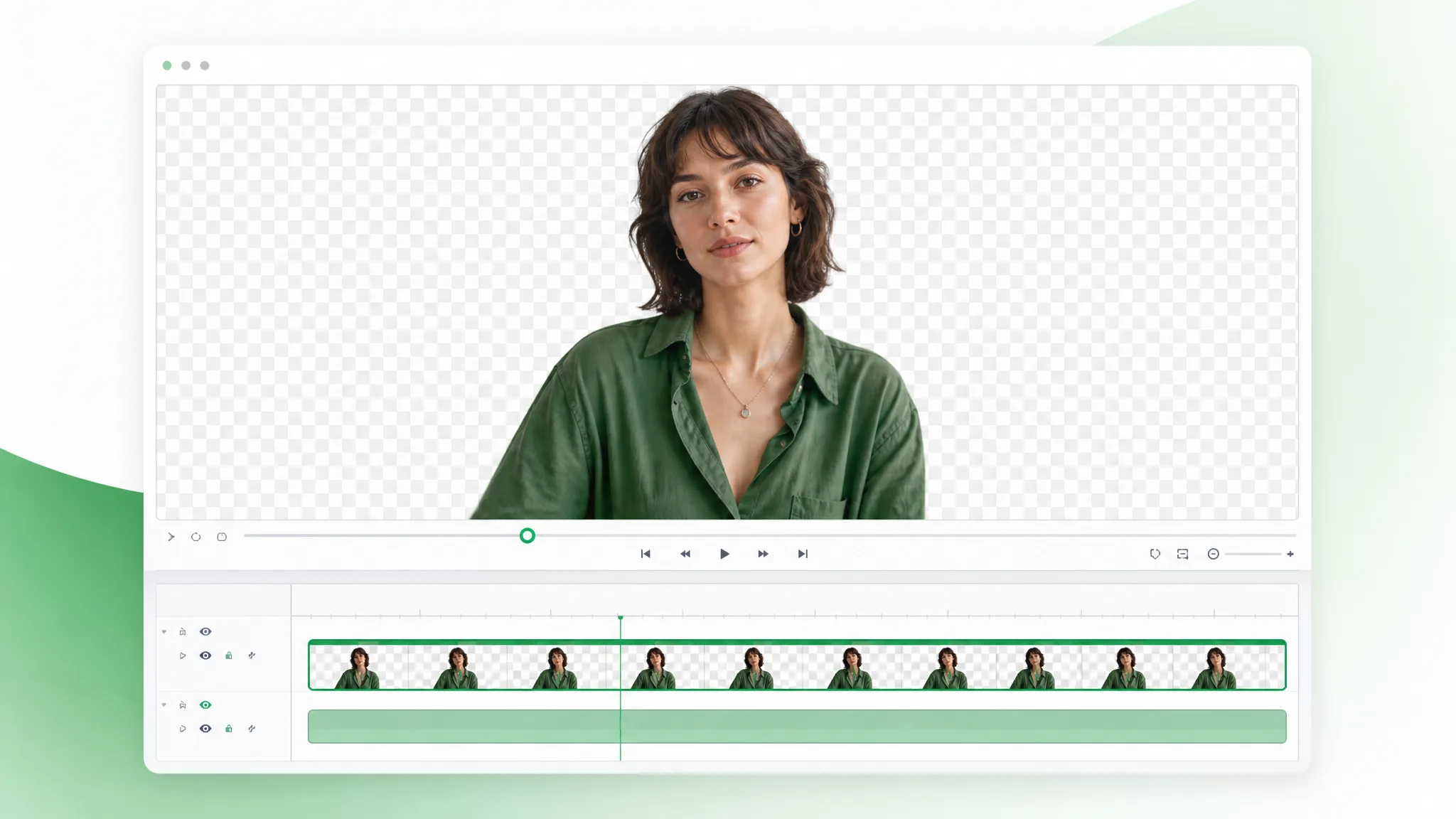
A woman on a transparent checkerboard in a video editor preview, with her clip as a strip of frames on the timeline below.Ultra

ProRes (MOV)

An editing-oriented MOV on a solid-color background, with your original audio kept. Available on the Ultra tier.

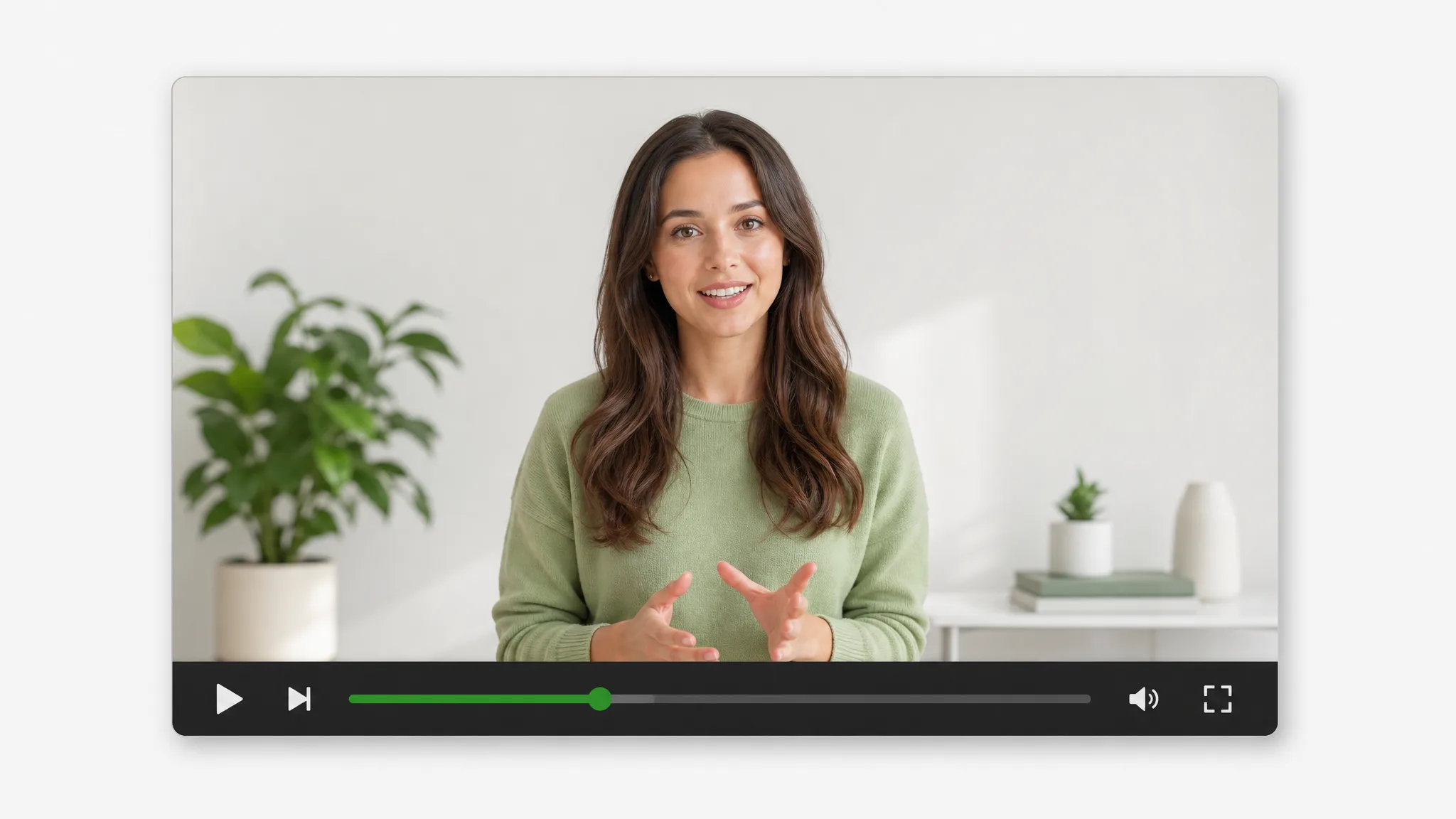
A woman wearing a green sweater talks in a bright room beside a plant, shown in a video player with play and volume controls.Solid color

MP4

Standard video on a solid-color or green background (Ultra), ready to key out in Premiere Pro, with original audio kept.

Use cases

Video background remover for every kind of project

A video background remover helps with any recording you already have. These four examples show what people make after they remove video background, and where the result goes, from store listings and social posts to stream graphics and lessons.

Online stores and product explainers

From a product demonstration, remove video background and export a solid-color version, or place the transparent WebM over campaign artwork in your editor. The presenter and product stay together in one cutout you can reuse in a listing video, a launch page or a social promotion.

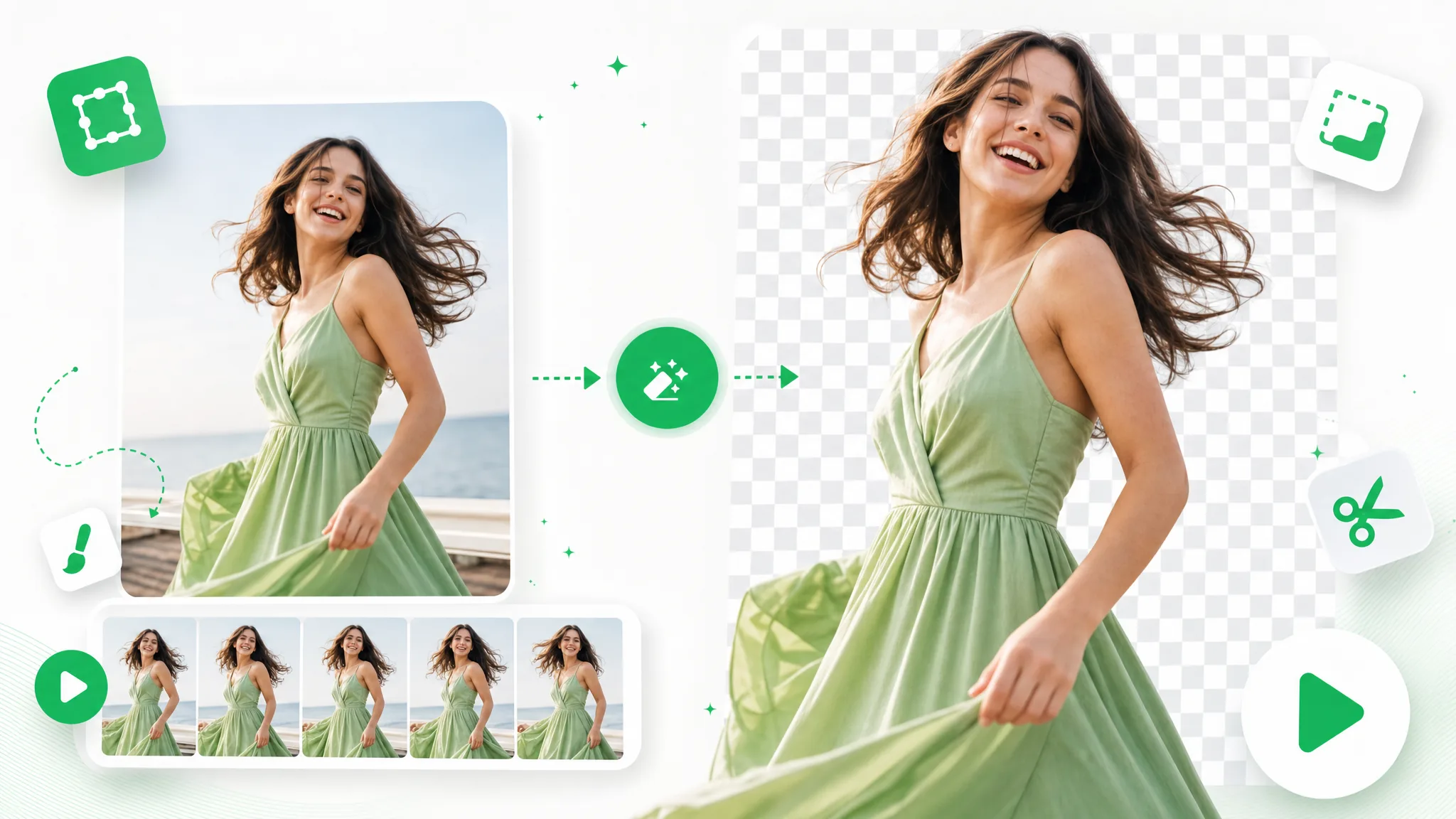
A woman holding a green handbag in a shop, then the same shot against a soft cream and pale green backdrop.

Creators and social stories

Turn a recorded introduction or reaction for a Reels, Shorts or TikTok clip into a separate subject layer: remove video background, place the cutout over your own design in an editor, and add the captions, framing and finishing touches that belong to the story you want to share.

A vertical clip of a woman with an iced coffee on a city street, next to her cutout floating on a checkerboard.

Streamers and facecam layers

Prepare a recorded facecam as a transparent video for a stream introduction, highlight edit or channel trailer. Process it once, then arrange the speaker alongside gameplay and graphics in your editor, keeping the scene composition under your control.

A man in headphones at a microphone in a gaming chair, shown in his room and then cut out against a checkerboard.

Teachers and course lessons

Take a recorded explanation, remove video background and place the teacher beside slides, diagrams or a worked example. Reuse the presenter layer across lesson sections while the teaching material changes around it, and keep one consistent look from the first module to the last.

A bearded man in a green shirt gesturing in front of bookshelves, then the same man alone on a transparent checkerboard.

Creator stories & examples

How creators remove background from video

“The spring collection was all about tiny ceramic birds, and the only decent footage was my colleague holding one in a cluttered studio. I used the tool to remove video background, then dropped the transparent WebM over our illustrated garden in the editor. The bird finally sat in the artwork instead of on a messy shelf.”
Clara V.Social Media Producer

FAQ

Remove video background FAQ

Answers to the questions people ask before they remove video background online: what it does, which outputs you get, how to start for free and how long a clip can be.

To remove video background with AI is to separate the main subject from the scene behind it. RemoveVideoBG does this for a presenter, product or character and gives you a transparent WebM layer, or on the Ultra tier a solid-color or green background, so one recording can work in a different composition.

Remove video background from your next clip

Upload a clip of a presenter, product or character and let the AI remove video background for you. Download a transparent WebM, or a solid-color video, for the post, lesson or campaign you are making, and start free.

Upload Your Video